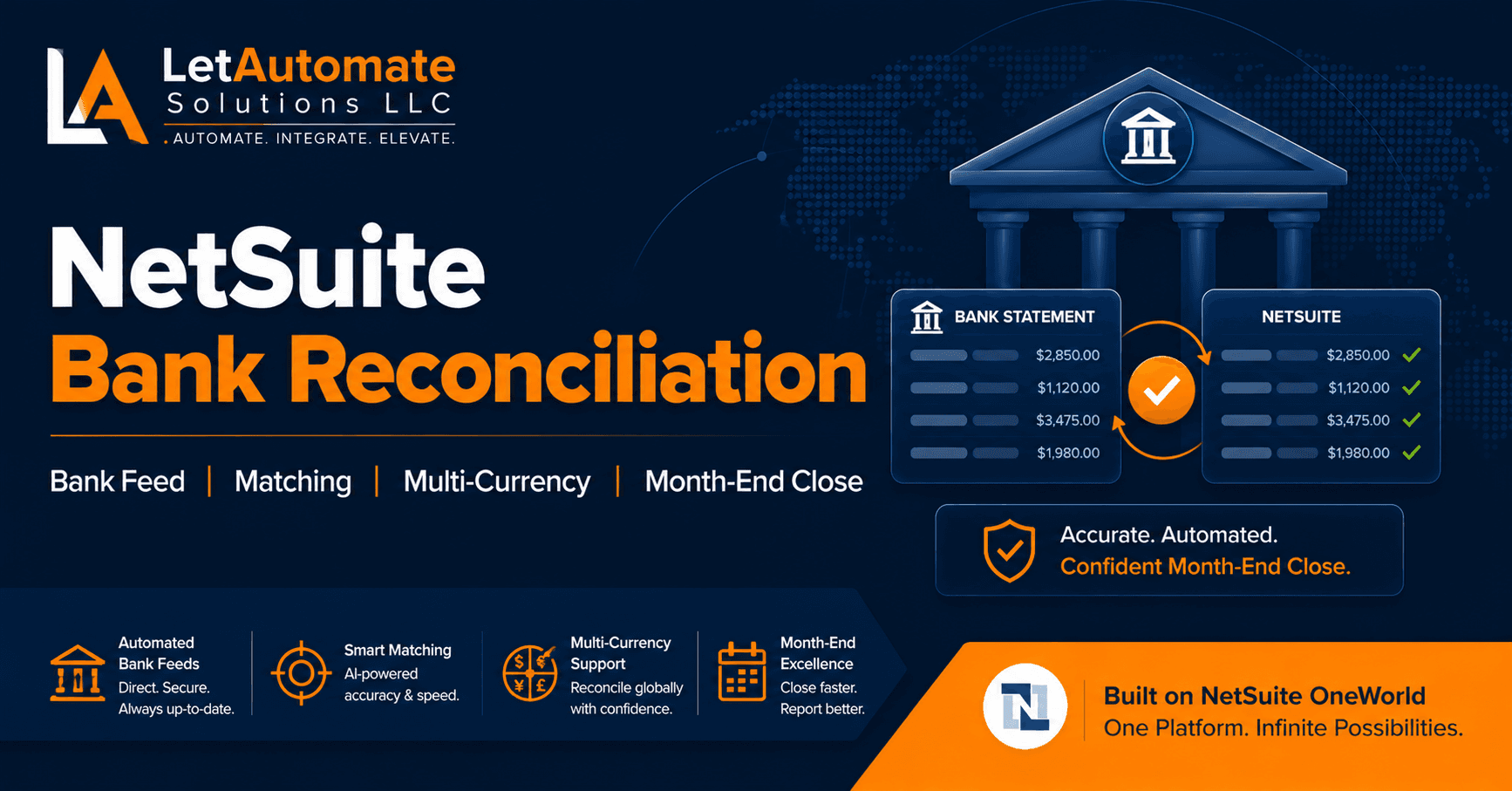
If your NetSuite bank reconciliation takes longer than half a day per account per month — something is wrong with the setup, not the process.
In almost every Distribution company NetSuite environment I have reviewed, the bank rec is slow, painful, or permanently off by an amount nobody can explain. The cause is almost never in the bank reconciliation screen itself. It is in how vendor payments were posted in P2P and how customer receipts were processed in O2C — weeks before month-end.
By the time finance sits down to reconcile, they are untangling problems created upstream. The bank rec is just where those problems become visible.
After 15+ years configuring NetSuite for Distribution companies, I have built a free AI Skill file that turns Claude or ChatGPT into a senior NetSuite bank reconciliation consultant — covering bank setup, import options, matching, multi-currency, and month-end close in the correct sequence.
Download the Free NetSuite Bank Rec AI Skill →
Why NetSuite Bank Rec Fails in Distribution Companies
Most bank rec problems trace back to one of these root causes.
1. Undeposited Funds Is Being Bypassed
This is the single most common cause of a bank reconciliation that never balances — and it creates a difference that grows every month.
Undeposited Funds is a holding account that sits between receiving a customer payment and depositing that money at the bank. The correct flow is:
Customer pays → Cash Receipt posts to Undeposited Funds → Bank deposit created → Undeposited Funds clears → Bank account balance increases
When someone posts a customer receipt directly to the bank account instead, the bank account balance increases immediately in NetSuite — but the bank statement shows the deposit on a different date, or as part of a batch deposit that does not match any single transaction. The reconciliation never ties.
This is not just a configuration problem. It is often a training problem — someone in the accounts team found a shortcut and did not realise the downstream impact.
2. Backdating Transactions After Period Lock
When a transaction is backdated into a period that has already been reconciled, it creates a difference in the current period that cannot be found without reviewing every transaction individually. Distribution companies with high transaction volumes are particularly vulnerable — a vendor payment posted to the wrong period is easy to miss and expensive to find.
The fix is process as much as system: lock accounting periods immediately after bank rec is complete. Setup > Accounting > Manage Accounting Periods.
3. Suspense Account Used as a Bin
Suspense accounts exist for items that cannot immediately be identified and matched. They should be temporary — resolved within days.
In many NetSuite environments I review, the suspense account has been in use for months. Unidentified bank transactions have been accumulating, nobody has investigated them, and the balance has grown to a point where it is affecting the trial balance.
The rule should be: anything posted to suspense must be cleared within 30 days. If it cannot be cleared, it needs to be escalated.
4. FX Revaluation Not Run Before Month-End Close
For Distribution companies with foreign currency bank accounts — USD, EUR, GBP if you are a US business banking in multiple currencies — the bank account balance in NetSuite needs to be revalued at the month-end exchange rate before the period is closed.
Without FX revaluation, your NetSuite bank balance and your bank statement balance will differ by the FX movement during the month. The difference will change every month as exchange rates move. It looks like an error — but it is a missing process step.
5. Bank Feed Silent Disconnection
If you are using a direct bank feed to import transactions automatically, a disconnection that goes unnoticed means transactions stop importing while the finance team continues their month-end process on incomplete data. The rec appears to be working until you notice the number of imported transactions is lower than expected.
Check the bank feed status before starting month-end close. Do not assume it is working because it was working last month.
Setting Up Bank Reconciliation in NetSuite: The Correct Approach
Bank Account Setup
Each physical bank account needs a corresponding GL account in NetSuite (Account Type: Bank). Key fields: currency (must match the physical account), subsidiary assignment, account number for bank feed matching.
One account per physical bank. One currency per account. If you have a USD account and a GBP account, those are two separate GL accounts, two separate reconciliations.
Bank Feed vs. CSV Import
Direct Bank Feed: connects your bank directly to NetSuite and imports transactions automatically. Available for most major US and UK banks. Setup at Setup > Accounting > Bank Feeds. Best option when available — reduces manual effort significantly.
CSV / OFX Import: download a statement file from your bank’s online portal and import it into NetSuite at Transactions > Bank > Import Online Banking Data. Works for any bank. Requires a manual step monthly. The risk is double-importing if a file is imported twice — always check for duplicates.
Manual Entry: not recommended for any Distribution company with more than 20 bank transactions per month. Too slow, too error-prone.
The Reconciliation Process Step by Step
Menu path: Transactions > Bank > Reconcile Bank Statement
- Select the bank account and enter the statement date
- Enter the closing balance from your bank statement
- NetSuite shows two columns: bank statement transactions (imported) and NetSuite transactions not yet cleared
- Match imported bank lines to NetSuite transactions — automatically where amounts and dates align, manually where they do not
- The difference should reach zero when all legitimate matches are made
- Outstanding items (uncleared) should be genuinely outstanding — not errors
- Save the reconciliation — this creates a locked record
- Export or print the Bank Reconciliation Summary as your audit evidence
Setting Up Matching Rules (Saves Hours Every Month)
NetSuite allows you to create automatic matching rules for recurring transactions — bank charges, direct debits, payroll, standing orders. Once configured, these match automatically every month without manual intervention.
Setup > Accounting > Bank Statement Matching Rules
Create rules based on: transaction description keyword, amount, or reference number. Assign the rule to the correct GL account. This is one of the highest-ROI configuration tasks in the bank rec setup.
Multi-Currency Bank Reconciliation for Distribution
If your Distribution business holds bank accounts in more than one currency, there are additional steps required at month-end.
FX Revaluation (must be run before closing the period): Transactions > Financial > Revalue Open Foreign Currency Balances
This posts an unrealised FX gain or loss journal that adjusts the bank account balance to the month-end exchange rate. Without it, your NetSuite bank balance and your bank statement (converted at the closing rate) will not match.
Reconciling in the account’s native currency: When reconciling a USD bank account in a GBP reporting company, you reconcile in USD — matching USD amounts on the bank statement to USD amounts in NetSuite. The GBP equivalent is handled by the revaluation journal, not by the reconciliation itself.
CTA (Currency Translation Adjustment): In multi-subsidiary environments, consolidating across currencies requires a CTA account in equity. This is separate from FX revaluation on bank accounts but needs to be set up as part of the overall financial reporting structure.
Month-End Close: The Correct Sequence
This sequence matters. Deviating from it creates problems that are hard to trace.
Step 1: Complete all transactions for the period — vendor payments, customer receipts, journals Step 2: Import the final bank statement or confirm bank feed is current Step 3: Run FX Revaluation for all foreign currency accounts Step 4: Complete Bank Reconciliation for every bank account Step 5: Confirm difference = zero on all accounts Step 6: Export Bank Reconciliation Summary as PDF (audit evidence) Step 7: Lock the accounting period: Setup > Accounting > Manage Accounting Periods > Close Period Step 8: Run Trial Balance to confirm it is in balance before sign-off
Do not lock the period until the reconciliation is complete. Once locked, posting into that period requires opening it again — which creates a timing risk if the lock was the thing preventing backdating.
Validation: Bank Rec Checklist Before Closing Period
✅ NetSuite bank account GL balance = bank statement closing balance
✅ All matched transactions show as Cleared in NetSuite
✅ Outstanding uncleared items are genuinely outstanding (list and explain each)
✅ Undeposited Funds balance is zero or matches known deposits in transit
✅ Suspense/clearing accounts have zero or documented balances with investigation status
✅ FX Revaluation journal has been posted for all foreign currency accounts
✅ No backdated transactions exist in the prior period
✅ Bank Reconciliation Summary exported as PDF and filed
✅ Accounting period locked after reconciliation is confirmed
Free AI Skill Download — NetSuite Bank Reconciliation {#download}
The Bank Reconciliation AI Skill turns Claude or ChatGPT into a senior NetSuite bank rec consultant for Distribution. Add it to a Claude Project or ChatGPT Custom GPT and it will:
- Diagnose where your bank rec problem is actually coming from (P2P, O2C, or rec setup)
- Walk you through setup in the correct sequence
- Cover multi-currency and FX revaluation for your specific account structure
- Give you the month-end close sequence that prevents the problems from recurring
- Provide a validation checklist before you close each period
Download NetSuite Bank Rec AI Skill →
(Free download. No email required. Built from real Distribution implementation experience.)
Need Expert Help With Your NetSuite Bank Reconciliation?
Bank rec that never balances, growing unmatched transaction lists, month-end close that takes a week — these are fixable. But they usually require tracing the problem back to P2P or O2C before the fix sticks.
LetAutomate Solutions LLC provides:
🔹 NetSuite Bank Rec Fix — untangle months of unmatched transactions and identify the root cause
🔹 Month-End Close Process Design — build a close process that takes days, not weeks
🔹 NetSuite Health Checks — audit your full finance configuration including P2P, O2C, and bank rec
🔹 AI Business Automation (BAI) — automate bank matching rules and month-end close checklists
Based in the US. Working with Distribution companies across North America and internationally.